How to Turn Off Keyboard Sound
Learn how to turn off keyboard sound across Windows, macOS, iOS, Android, and Linux with clear OS-specific steps, troubleshooting tips, and best practices from Keyboard Gurus.


Are you wondering how to turn off keyboard sound? This guide explains how to silence keypress alerts across Windows, macOS, iOS, Android, and Linux. You’ll find OS-specific steps, quick checks, and best practices to keep typing quiet in meetings, study rooms, or shared spaces. According to Keyboard Gurus, these steps will typically disable audible feedback without slowing your workflow or accessibility.
Why silencing keyboard sounds matters
For many keyboard users, quiet typing reduces distractions in study rooms, open offices, streams, and libraries. Audible keystrokes can break concentration, reveal private data in public spaces, or disrupt team communication during calls. According to Keyboard Gurus, selecting the right quieting approach preserves functionality while removing unwanted noise. This section helps you understand when it’s worth turning off sounds and what to expect from different devices.
Understanding keyboard sound sources
Not all typing noises come from the same place. Some devices emit a click when you press a key; others play a system notification or a typing feedback sound in the keyboard app. Additionally, on-screen keyboards and third-party apps may have their own sound settings. Identifying the source helps you target the exact switch, app, or setting to mute, rather than muting everything and losing useful cues.
OS-by-OS overview: what to expect
Most modern operating systems offer a dedicated switch for typing feedback. The labels vary—“Key press," "Keyboard click," or "Typing feedback” are common names. Some devices also allow you to mute all system sounds, which can indirectly silence keyboard noises. Review both system sounds and accessibility sections to ensure you cover every potential source.
Windows: turn off keyboard sounds
Open the Settings app (Win + I), then navigate to System > Sound or Accessibility > Visual or interaction sounds. Look for options like “Play a sound when typing,” “Keyboard feedback,” or “Type with sound.” Turn the toggle off. If you don’t see it, try the Search bar and enter “keyboard sound,” then apply the switch from the results. This approach is usually reliable for Windows 10/11 environments.
macOS: turn off keyboard sounds
Open System Settings (or System Preferences on older macOS) and select Keyboard. Disable the “Play feedback when typing” or “Key click” option. You might also find a global sound toggle under Sound preferences; turning off alert and system sounds can help, but focus on the keyboard-specific setting first. If you use external keyboards, check their own settings as well.
Linux desktop environments: GNOME, KDE, and others
Linux setups vary by distribution and desktop environment. Generally, open Settings > Keyboard or Typing, and disable “Keypress sound,” “Play typing feedback,” or similar. Some environments require editing dconf/gsettings values or using the command line to mute all system sounds temporarily. If unsure, search for the exact wording in your distro’s settings or consult its documentation.
iOS and iPadOS: muting keyboard feedback
On iPhone or iPad, go to Settings > Sounds & Haptics (or Sounds) and toggle off Keyboard Clicks. If you keep other sound effects, you may still hear sounds elsewhere. This setting applies to the built-in iOS keyboard; third-party keyboards may have their own sound controls.
Android: mute keyboard sounds for Google and other keyboards
Open Settings > System > Languages & input > Virtual keyboard, then choose your keyboard (e.g., Gboard, SwiftKey). Turn off Keypress sound or Keyboard sound. Some devices place the option under Settings > Sounds > Keyboard sounds. If you use a custom keyboard, check its in-app settings for a similar option.
Third-party keyboards and apps
Third-party keyboards often maintain their own sound settings independent of the OS. Check each keyboard’s own settings for “Sound on keypress” or similar. If you type a lot on external keyboards, you may also find hardware-level switches on the keyboard itself that silence audible feedback, especially on laptops and mechanical keyboards.
Accessibility considerations: alternative cues
If you rely on audible feedback for accessibility, turning off sounds might reduce your typing efficiency. Instead, customize visual cues (like a cursor flash or on-screen highlights) or use vibration feedback where available. Always test after changes to ensure you can type confidently without audio cues.
Troubleshooting: sounds persist after changes
If sounds persist, recheck the exact setting names in each OS version, as updates can rename options. Some apps may override system settings; disable typing sounds in those apps directly. Restarting the device or signing out and back in can refresh settings and ensure changes take effect.
Practical testing and verification
Test by typing in a variety of apps—notes, email, chat—to confirm the keypress sounds are gone. If you still hear a click, record a short clip and review where the sound comes from. This process helps you pinpoint the source and confirm a true mute across environments.
How Keyboard Gurus approaches quiet keyboards
At Keyboard Gurus, we emphasize practical, device-friendly steps rather than drastic system-wide changes. Our analysis in 2026 suggests focusing on keyboard feedback controls first, then exploring app-specific options if needed. By following evidence-based methods, you can achieve a quieter setup without sacrificing essential features.
Final thoughts and next steps
Silencing keyboard sounds is a small but impactful upgrade for focus and privacy. Keep your OS and apps updated, and periodically review sound settings as new versions can introduce new options. If you want a deeper dive, explore our full library of keyboard guides for more customization tips.
Tools & Materials
- Device with configurable keyboard sound(Windows PC, Mac, iPhone/iPad, or Android device; admin access helps for system-wide changes)
- Access to Settings apps(OS-specific: Settings (Windows), System Settings (macOS), iOS Settings, Android Settings, or Linux Settings)
- Verified testing method(Headphones or external speakers to confirm silence across environments)
- Optional: keyboard-specific apps/settings(Some third-party keyboards have their own sound controls)
Steps
Estimated time: 25-40 minutes
- 1
Open the Settings app on your device
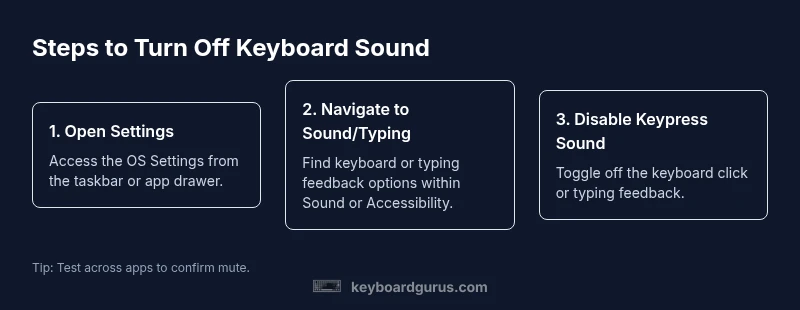
Launch the Settings app or Control Panel on your device. This is your entry point to locate the keyboard sound option. On desktops, you may press a shortcut like Win + I; on mobile devices, find the Settings icon. WHY: Starting here ensures you target the correct OS path rather than hunting in unrelated menus.
Tip: Use a search term like "keyboard sound" in the OS search bar to navigate quickly. - 2
Navigate to the keyboard or sound section
In Windows, go to System > Sound or Accessibility; macOS users go to Keyboard; mobile users check Sounds or Keyboard settings. The exact labels vary by version, but you’re looking for typing feedback or keypress sound options. WHY: These are the controls most likely responsible for audible keystrokes.
Tip: If you can’t find it, use the OS search feature to locate typing feedback options. - 3
Disable keypress or typing feedback sounds
Toggle off the option labeled Play sound when typing, Keyboard feedback, Key click, or Typing sounds. This removes the audible cue while preserving typing ability. WHY: It targets the source without muting all system audio.
Tip: If a toggle exists per app or keyboard, disable both system and app-specific options. - 4
Repeat for accessibility and system sound options
Check Accessibility or Sound settings to ensure you aren’t disabling a broader system sound. Some devices only mute keyboard sounds when you disable a dedicated keyboard feedback option. WHY: Mislabeling or cascading settings can leave sounds enabled.
Tip: Some devices require disabling both typing feedback and general notification sounds. - 5
Test typing to confirm silence
Open a note app or chat and type several sentences to verify there is no keystroke sound. If you still hear a sound, retrace to ensure you modified the correct setting for your active keyboard. WHY: Real-world testing confirms the mute is effective.
Tip: Test in multiple apps to cover different keyboard implementations. - 6
Check external keyboards and on-screen keyboards
If you use a USB or Bluetooth keyboard, check its own sound controls and ensure the on-screen keyboard isn’t responsible for the sound. WHY: Hardware or app-level cues can persist even after OS changes.
Tip: Disable key sounds on hardware keyboards if they offer that switch. - 7
Repeat on other devices if needed
Cross-check other devices (phone, tablet, laptop) to maintain a quiet typing environment across platforms. WHY: Users often switch between devices in one workflow.
Tip: Carry a small checklist for each device. - 8
Document the steps for future updates
Record the exact menu paths and terminology you used, as OS updates can rename options. WHY: Keeps you prepared for future changes and reduces friction next time.
Tip: Create a quick note or screenshot library. - 9
Consider accessibility alternatives
If you rely on audible feedback for accessibility, seek visual or haptic cues (cursor highlight, vibration) instead of turning off all sound. WHY: Keeps usability intact for all users.
Tip: Test both visual and haptic cues to find a balanced solution. - 10
Restore settings if needed
If you later need audible feedback for certain tasks, re-enable the option in the same menus where you turned it off. WHY: Reversibility preserves user choice.
Tip: Label your changes so you remember what you did. - 11
Keep your devices updated
Regular OS updates can introduce new sound-related features. Check settings after major updates to ensure your preferences persist. WHY: Updates may reset minor preferences.
Tip: Set a reminder to review sound settings after updates. - 12
Optionally centralize guidance
If you manage multiple devices, standardize the steps with a small guide for your team or household. WHY: Consistency reduces confusion and support requests.
Tip: Create a shared document with device-specific paths.
Got Questions?
Can I silence keyboard sounds on every device at once?
No single switch disables typing sounds on all devices simultaneously. Each OS (Windows, macOS, iOS, Android, Linux) has its own settings. Start with the keyboard feedback option on each device, then check any third-party keyboards or apps you use.
There isn’t a universal mute button; you’ll need to adjust each device separately.
What if a third-party keyboard keeps making sounds after system changes?
Many third-party keyboards have their own sound settings. Open the keyboard’s in-app settings and disable keypress sounds there. If in doubt, consult the app’s help resources or reinstall the keyboard to reset defaults.
Look for the keyboard’s own sound toggle in its settings.
Why do sounds come back after software updates?
Updates can rename or reset sound preferences. After updates, revisit the keyboard sound options in System Settings, Accessibility, and the keyboard app itself to reapply your mute preferences.
Updates can reset your sound choices, so check settings after updates.
Do accessibility needs affect whether I should mute sounds?
If you rely on audible feedback for accessibility, mute selectively or replace sounds with visual cues like cursor highlights or haptic feedback where available. Test to ensure typing remains comfortable.
If you need audio cues, don’t mute everything—opt for non-audio signals.
Will muting keyboard sounds affect typing accuracy?
Muting sounds does not affect typing accuracy or speed; it only removes the audible feedback. You may need a short adjustment period to rely on visual cues or muscle memory.
Mute feedback won’t slow you down once you adapt.
Is hardware customization a solution for silent keyboards?
Some keyboards offer physical switches or firmware controls for silent typing. Check your keyboard manual for any key switches or dedicated mute options.
Hardware options can silence sound at the source.
Watch Video
What to Remember
- Mute keyboard sounds without losing typing ability
- Check OS and app-specific settings for best results
- Test across apps to confirm silence
- Document settings for future updates
- Consider accessibility alternatives if needed