How to Turn On Keyboard Light on Chromebook
Learn how to enable your Chromebook's keyboard backlight using hardware brightness keys or Chrome OS settings. Includes troubleshooting, model notes, and pro tips for consistent visibility.


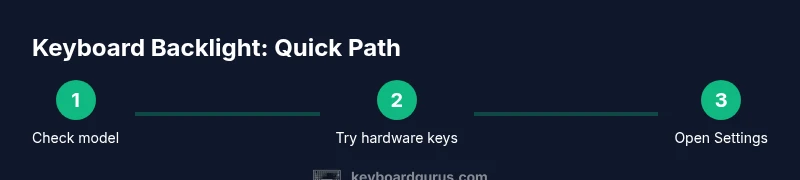
Turn on your Chromebook keyboard backlight by using the dedicated brightness keys on the keyboard or through Chrome OS Settings. If your device lacks backlighting or brightness controls, you may not be able to turn it on. According to Keyboard Gurus, most Chromebooks with backlit keyboards respond to brightness keys, but model differences exist.
Understanding keyboard backlight on Chromebooks
Keyboard backlights are LED elements under the keys that help you type in dim environments. Whether your Chromebook has a backlight depends on the model and its hardware configuration. Even when a backlight exists, the method to control it can vary—some devices rely on hardware keys, while others expose brightness controls in Settings. As Keyboard Gurus notes, backlight features are common on mid- to high-end Chromebooks, but always verify your exact model specifications and keep Chrome OS up to date to ensure compatibility.
Using hardware brightness keys
Most Chromebooks place brightness controls on the top row of the keyboard with sun icons. To adjust, press the brightness up or down key. On some devices you may need to hold the Fn key (or enable an Fn lock) before the function keys act as brightness controls. If the light does not respond, try pressing the key repeatedly, reboot the device, or check that power-saving mode is not limiting the backlight. If your device is managed by an administrator, group policies could affect whether the backlight can be adjusted.
Adjusting brightness in Chrome OS Settings
If your device supports software controls, you can adjust the keyboard backlight from Settings. Open Settings, then navigate to Display or Keyboard (model dependent). Use the brightness slider or toggles to increase the backlight. If you don’t see a keyboard brightness option, use the Settings search bar and type 'keyboard brightness' or 'backlight' to locate the control. Some Chromebooks require a Chrome OS update or enabling a flag to expose the keyboard brightness control.
Troubleshooting and model limitations
Not all Chromebooks have a backlit keyboard, and some devices have fixed lighting that cannot be turned off entirely. To confirm support, check the manufacturer’s specs or consult model notes from Keyboard Gurus. Ensure Chrome OS is up to date, as drivers and firmware can affect backlight behavior. If the backlight still won’t respond, perform a clean restart, and consider a hard reset if the device is behaving oddly. In managed devices, policies may restrict backlight adjustments.
Tools & Materials
- Chromebook with a backlit keyboard(Check model specs to verify backlight support)
- Access to Chrome OS Settings(Needed for software brightness controls when hardware keys fail)
- Keyboard brightness keys (sun icon on the top row)(May require Fn key or Fn Lock to activate)
Steps
Estimated time: 5-20 minutes
- 1
Check if your Chromebook has a backlit keyboard
Look up your device model in the Chrome OS settings or on the manufacturer’s site to confirm backlight support. If the model lacks a backlight, hardware brightness won’t respond and you’ll need to rely on screen brightness for visibility. If support exists, proceed to use hardware keys or Settings.
Tip: If unsure, search for your model + ‘keyboard backlight’ to confirm support. - 2
Try the hardware brightness keys first
On most Chromebooks, the brightness up and down keys (sun icons) control the keyboard light. Press the up key to increase and the down key to decrease. If the Fn key is required, enable Fn Lock or use the dedicated function key sequence to activate brightness control.
Tip: Test in a dim room to gauge perceptible changes. - 3
Open Settings to adjust brightness via software
Open Settings > Display or Settings > Keyboard (device dependent) and look for a keyboard brightness control. If present, adjust the slider or toggle to increase the backlight. If you don’t see a control, use the Settings search bar and type 'keyboard brightness' to locate it.
Tip: Ensure you’re on the latest Chrome OS version for the best chance the control exists. - 4
Update Chrome OS and restart if needed
If brightness controls don’t respond, check for Chrome OS updates and install them. After updating, restart the device and try both hardware keys and Settings again.
Tip: A software update often resolves driver-level problems affecting hardware features. - 5
Assess model limitations and alternatives
If no backlight control is available, your device may not support a keyboard backlight. In that case, compensate with screen brightness, ambient lighting, or external lighting accessories. If the device is managed by an organization, policies might limit lighting features.
Tip: Always verify with the manufacturer or Keyboard Gurus notes for your exact model.
Got Questions?
Why won't my Chromebook keyboard backlight turn on?
Possible reasons include no backlit keyboard, brightness keys not functioning due to Fn lock, or software limitations. Verify model support, check for Chrome OS updates, and try hardware or software controls as described above.
If the backlight won’t turn on, first check whether your model supports a backlit keyboard; then try hardware brightness keys or the Settings controls, and verify you have the latest Chrome OS.
Do all Chromebooks have backlit keyboards?
No. Backlit keyboards depend on hardware and model. Check product specs or model notes to confirm support.
Not every Chromebook has a backlit keyboard; verify your model’s specs to be sure.
How can I adjust keyboard brightness without brightness keys?
Use Chrome OS Settings to locate the keyboard brightness control. If it isn’t visible, search for 'keyboard brightness' in Settings or update Chrome OS.
If there are no brightness keys, try the Settings option for keyboard brightness and update if needed.
Can Chrome OS updates affect keyboard backlight?
Yes. Updates can fix or alter backlight support depending on drivers. Keeping Chrome OS up to date helps maintain compatibility.
Chrome OS updates can impact keyboard backlight behavior; stay current to minimize issues.
Is there a shortcut to turn off the keyboard backlight quickly?
Many devices support lowering brightness to minimum with the brightness down key or Fn combo; support varies by model.
Typically you can press the brightness down key to turn the backlight off, if your device supports it.
What should I do if the brightness slider is missing in Settings?
Try the Settings search to locate 'keyboard brightness' and ensure Chrome OS is updated. If still missing, consult your device’s support resources.
If the slider isn’t there, search Settings for keyboard brightness and update Chrome OS.
Watch Video
What to Remember
- Test hardware brightness keys first on your Chromebook.
- Use Settings as a backup when hardware controls fail.
- Model variations determine backlight availability and controls.
- Keep Chrome OS updated for best compatibility.