How to Turn On Light on Laptop Keyboard
Learn how to turn on your laptop keyboard backlight with clear steps, shortcuts, OS tweaks, and practical troubleshooting tips from Keyboard Gurus.


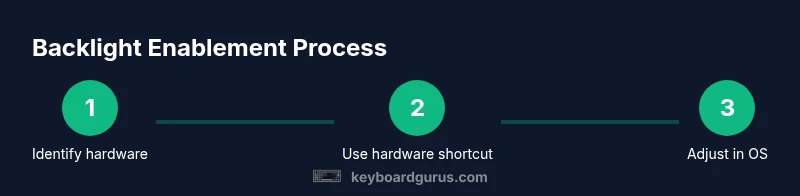
Turn on your laptop keyboard backlight using the hardware shortcut (often Fn + a brightness key) or a dedicated key, then adjust brightness in your OS settings. If the light won’t come on, verify hardware support, try BIOS or manufacturer software, and update drivers. Keyboard Gurus finds that most backlights are hardware-enabled but may be disabled by software.
What is a keyboard backlight and why it matters
A keyboard backlight is a small light under the keys that illuminates the entire keyboard surface. It helps you type in low-light environments, improves accuracy in dim rooms, and can reduce eye strain when working late. Not all laptops have backlit keyboards, and among those that do, the brightness range and color, if offered, can vary. For enthusiasts and professionals, understanding how the backlight is controlled—by hardware shortcuts, OS settings, or manufacturer utilities—will save time and frustration. The Keyboard Gurus team notes that backlight behavior often depends on the model, power state, and firmware. Knowing these dependencies empowers you to enable illumination quickly and reliably.
How backlight systems differ by laptop brands and OS
Backlight implementations differ across brands, with some laptops featuring classic LED backlights, others using RGB variants, and some relying on a simple single-color glow. Windows, macOS, and Linux offer separate pathways to control brightness, and many models also expose backlight preferences through BIOS/UEFI, or through a vendor-provided control panel. If you mix devices or dual-boot, you’ll need to map the proper shortcut or software tool for each OS. Keyboard Gurus analysis shows this variation is the most frequent source of confusion for new users.
Quick pre-checks before enabling the light
Before you attempt to light up the keyboard, confirm your device actually supports backlighting. Check the physical keys for a brightness or sun icon, and inspect the power state—backlights can disable when the battery is very low. Ensure you are on a charge or plugged in if your model limits backlight brightness when battery saver is active. If a vendor utility exists (e.g., a keyboard customization app), verify that backlight toggling isn’t turned off in that software. These upfront checks prevent unnecessary troubleshooting later.
Mastering hardware shortcuts: Fn keys, dedicated keys, and BIOS
Many laptops use a function key combination like Fn + F5 / F6 to adjust backlight brightness, sometimes with an on-screen indicator. Some gaming or premium models have a dedicated backlight button. If the shortcut doesn’t work, try the following: ensure Num Lock or Fn Lock isn’t interfering, test both brightness steps, and reset the keyboard settings in the vendor utility. If the light remains off, you may need to enable backlighting in BIOS/UEFI or via a preinstalled control panel. The goal is to confirm that the hardware route is enabled and responsive.
OS-level tuning: Windows, macOS, and Linux backlight settings
Windows users often find backlight controls in Settings > Personalization > Keyboard (or in a vendor utility). macOS provides brightness controls within System Settings for keyboards that support illumination, and Linux distributions may expose backlight control through /sys/class/leds or vendor-specific tools. In all cases, ensure that adaptive brightness or power-saving features aren’t dimming the backlight unintentionally. When you adjust brightness, verify the effect with the keyboard’s own lighting indicators or by observing the glow under low-light conditions.
Troubleshooting when the backlight won’t turn on
If the backlight remains dark after trying shortcuts and OS settings, start with driver updates and BIOS/UEFI checks. Update graphics and chipset drivers, as some power management components control keyboard lighting indirectly. If possible, test the keyboard on another OS or use a Live USB to isolate software issues. Hardware problems—such as a faulty LED, loose cable, or motherboard issue—may require professional diagnosis. Keyboard Gurus recommends a methodical, step-by-step approach to rule out software before hardware.
When to contact support and how to protect your backlight
If you cannot enable backlighting after exhausting software and firmware options, contact your laptop maker’s support with model number, BIOS version, and any diagnostics you ran. Keep firmware and driver updates current, and avoid exposing the keyboard to liquids or extreme heat, which can damage the backlight hardware. Regularly clean the keyboard safely and ensure vents aren’t obstructed, helping maintain consistent illumination over time.
Tools & Materials
- Laptop keyboard backlight shortcut keys (Fn + brightness key) or dedicated backlight button(Look for a sun icon or a symbol on the key row; some laptops require FnLock)
- Manufacturer software or control panel(Some models rely on vendor apps to enable backlight or adjust brightness)
- OS access to brightness settings (Windows, macOS, or Linux)(Know where brightness controls live in your current OS)
- User manual or model-specific guide(Can provide model-specific steps and BIOS options)
- BIOS/UEFI access to keyboard backlight settings(Only if the hardware shortcut and software routes fail)
Steps
Estimated time: 15-25 minutes
- 1
Identify hardware support and locate controls
Inspect the keyboard for backlight indicators and locate the shortcut keys. Confirm there is a brightness function symbol on the keys. If you have a dedicated backlight button, note its location and test press to see if the keyboard glows.
Tip: If you’re unsure of your model, check the user manual or manufacturer’s support site. - 2
Try the hardware shortcut first
Press the Fn key in combination with the brightness key (often F5/F6) to cycle through brightness levels. If a key combo doesn’t respond, try Fn Lock or different function rows. Observe any on-screen prompts that indicate brightness changes.
Tip: Some laptops require a reboot to activate initially after a driver update. - 3
Check OS-level brightness controls
Open your OS settings to verify the backlight can be controlled there. Windows: Settings > Personalization/Keyboard; macOS: System Settings > Keyboard; Linux: distro-specific brightness controls or /sys/class/leds.
Tip: Ensure power-saving or adaptive brightness features are disabled while testing. - 4
Test with a simple lighting scene
Show the backlight in a dim room or empty room to clearly see the glow. Change brightness to confirm a visible range and ensure consistent illumination across the keyboard.
Tip: If you don’t see any glow, proceed to firmware/driver checks. - 5
Update drivers and firmware
Update keyboard-related drivers, chipset, and firmware to ensure the backlight is properly supported by the system. Reboot after updates and test again.
Tip: Keep a repair or warranty option handy if updates don’t fix the issue. - 6
Advanced checks and professional help
If the backlight still fails, check BIOS/UEFI options to enable lighting there, test in another OS, or consult professional service. Document your findings to speed up support calls.
Tip: Hardware faults may require component replacement.
Got Questions?
Why won't my laptop keyboard backlight turn on even when I press the shortcut?
First check that the feature is enabled in OS settings and that you’re using the correct shortcut for your model. Update drivers and firmware if needed. If the issue persists, consult the manufacturer’s support page or BIOS options.
If the shortcut doesn’t work, verify OS settings and try a firmware update; contact support if the problem remains.
Does turning on the backlight drain my laptop battery quickly?
Backlighting consumes power, especially at higher brightness. Use the lowest comfortable brightness and disable backlight when not needed to minimize drain.
Yes, it consumes power, so set brightness conservatively.
Is backlight available on all laptops?
No. Backlighting is model-dependent. Check your laptop specifications or device manual to confirm support.
Not every model has a backlight, so verify your device specs.
How do I adjust brightness if the function key doesn’t have brightness icons?
Use OS settings or a vendor utility if available. Some models require a different key combination; check the manual for exact steps.
Try OS settings first, then vendor utilities if needed.
What should I do if backlight flickers or dims intermittently?
Update drivers, check hardware connections, and test in BIOS to distinguish software vs hardware issues. If unresolved, seek professional service.
Update software first, then hardware checks if the issue continues.
Watch Video
What to Remember
- Identify if your device supports backlighting before troubleshooting