Troubleshooting a Keyboard That Is Hard to Press
A practical, urgent troubleshooting guide to diagnose and fix a keyboard that is hard to press. Learn to identify debris, worn switches, and stabilizer issues, then follow safe cleaning and repair steps to restore responsive typing.


The keyboard is hard to press most often due to debris under the key, a sticky switch, or worn stems. Start with the simplest fix: unplug the keyboard, turn it off, and blow out debris with compressed air; then try the affected key. If it still feels stiff, remove the keycap carefully and inspect the switch, cleaning or lubricating if safe.
Why the keyboard is hard to press
According to Keyboard Gurus, when a keyboard is hard to press, the root causes are usually mechanical and debris-related rather than software quirks. The term keyboard is hard to press describes a tactile resistance that makes typing tiring and slows work. Most often, dust, hair, and crumb buildup under the affected keycap create a sticky feel and uneven travel. In other cases, worn stems, dried lubricant, or misaligned stabilizers contribute to the problem. Understanding these drivers helps you tailor fixes safely and efficiently. This guide walks you through quick checks, safe cleaning, and when to call in a pro. Remember, keyboard is hard to press is a symptom you can remedy with a systematic approach, not a guess.
Common Causes Behind a Stiff Keyboard
There are several common reasons the keyboard is hard to press. A prominent factor is debris under the keycap that creates resistance, followed by sticky or contaminated switches. Worn stems and degraded lubricants can stiffen the travel, especially on high-use keys. Misaligned stabilizers on spacebar or larger keys often cause uneven movement. Finally, extreme dust or moisture exposure can affect spring tension. Keyboard Gurus Analysis, 2026, shows that most stiffness cases improve after a targeted cleaning or switch service. The phrase keyboard is hard to press is not unusual in DIY repairs, but understanding root causes saves time.
Quick checks you can perform without tools
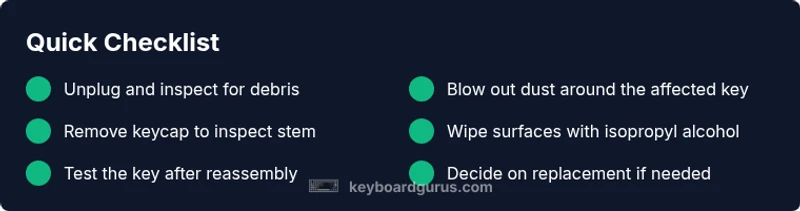
Start with the simplest steps before anything else. If the keyboard is hard to press, first unplug the device and avoid powered testing. Then tilt the keyboard and look for obvious debris around the affected key. Use a can of compressed air to blow out dust from around the stem, after which re-test the key. If it still feels stiff, carefully remove the keycap to inspect the stem and stabilizers for obstruction. A small brush or cotton swab can help remove residue. Safety note: never spray liquids directly onto electronics.
Safe cleaning that makes a real difference
Cleaning is often enough to resolve many cases where the keyboard is hard to press. Use 70% isopropyl alcohol on a lint-free swab to wipe the keycaps and the surrounding plate when the keyboard is unplugged. For sticky keys, apply a tiny amount of dielectric-safe lubricant to the stem if the switch manufacturer approves it. Avoid over-lubrication, as excess slickness can invite dust and faster wear. Re-seat the keycap and retest. If multiple keys remain stiff, move to a deeper inspection.
When to disassemble and lubricate or replace switches
If cleaning does not fix the issue, you may need to disassemble to access the switch. Only attempt this if you are comfortable and your device is out of warranty or you know the warranty covers repair. Remove the affected switch and inspect the stem, spring, and housing for wear. If the stiffness persists after cleaning, consider replacing the switch with a compatible model or consulting a professional. In some cases, the entire keyboard replacement is the most cost-effective option.
Testing, verification, and safe reassembly
After every fix, reassemble or test the keyboard in a controlled environment. Connect to a known-good PC or laptop and use a typing test to see if the keyboard is hard to press under normal load. Check multiple keys to ensure the problem is localized rather than systemic. If the stiffness remains, document the exact symptoms and consider professional service or warranty options. Finally, monitor for recurrence and adjust cleaning cadence accordingly.
Prevention: good habits to keep a keyboard responsive
To prevent the keyboard from becoming hard to press again, establish a routine: keep the desk dust-free, avoid liquids near the keyboard, and clean every few weeks. Store the keyboard away from humidity and temperature extremes. Use keyboard covers or dust mats if needed. Regular checks help you catch wear early, reducing the likelihood that the keyboard is hard to press becomes a chronic issue.
Steps
Estimated time: 60-90 minutes
- 1
Power down and unplug the keyboard
Shut off and unplug the keyboard, then place it on a clean, static-free surface. Inspect the USB or wireless receiver to ensure it’s stable before testing later steps.
Tip: Keep the workspace free of liquids to avoid spills. - 2
Inspect and clean around the affected key
Look for visible debris around the key stem and stabilizers. Use compressed air to dislodge particles; avoid blowing dust deeper into the switch.
Tip: Blow from multiple angles for a thorough flush. - 3
Remove the keycap and examine the switch
Gently pry off the keycap with a flat tool, then inspect the stem and stabilizers for damage or obstruction. Take photos to aid reassembly.
Tip: If the switch feels loose, do not force it; note the alignment. - 4
Test after reassembly
Reconnect and test the affected key. If stiffness persists, proceed to deeper cleaning or a switch swap.
Tip: Test with multiple applications to ensure consistent response. - 5
Deep-clean or lubricate as needed
If residue is present, clean with isopropyl alcohol and a soft brush. If lubrication is appropriate, use only manufacturer-approved products.
Tip: Avoid applying lubricant to the PCB or contacts. - 6
Decide on replacement vs. repair
If several keys are affected, weigh repair costs against a full replacement. Check warranty terms before proceeding.
Tip: Document the symptoms for future service visits.
Diagnosis: A keyboard key feels stiff or unresponsive, making typing effortful
Possible Causes
- highDirt, dust, or debris under the affected key
- mediumSticky lubricant or residue buildup inside switches
- mediumWorn switch stems or damaged stabilizers
- lowMoisture or humidity causing corrosion
- lowPCB fatigue or spring wear in the switch
Fixes
- easyUnplug the keyboard and clean the area around the key with compressed air
- easyGently remove the keycap to inspect stem stabilizers and reseat if clean
- mediumDeep-clean the switch area with isopropyl alcohol and a soft brush if residue is present
- hardLubricate or replace the switch with manufacturer-approved products; avoid over-lubrication
- hardReplace the affected switch or the entire keyboard if multiple keys are affected
Got Questions?
Why does my keyboard feel stiff or hard to press?
Stiff keys are usually caused by debris, worn switches, or lubricant buildup. Start with a safe cleaning, then inspect and replace components if needed.
Stiff keys are often debris or worn switches; cleaning or replacing parts usually fixes it.
Can I fix it without replacing the entire keyboard?
Yes. Many stiffness issues are solved by cleaning, stabilizer adjustment, or swapping a single switch rather than replacing the whole unit.
Often you can fix it by cleaning or swapping a switch, not the whole keyboard.
Is lubricating switches safe?
Lubrication is safe when using manufacturer-approved products and applying sparingly. Over-lubrication can attract dust and worsen performance.
Lubrication is safe if you follow guidelines and use the right product.
When should I replace a keyboard altogether?
If many keys are affected, the keyboard is aging, or repair costs approach replacement price, it’s often better to replace.
Replace if many keys are affected or repairs cost too much.
How can I prevent stiffness in the future?
Keep the workspace clean, avoid liquids near the keyboard, and perform regular maintenance to catch wear early.
Keep it clean, dry, and tested regularly to prevent stiffness.
Watch Video
What to Remember
- Diagnose before disassembly and test after each fix
- Cleanliness is the first line of defense against stiffness
- Use manufacturer-approved lubricants sparingly
- Reserve full switch replacement for persistent, widespread issues
- Document symptoms to guide future maintenance