What Causes Keyboard Chatter: A Practical Troubleshooting Guide
Discover what causes keyboard chatter and how to diagnose and fix unwanted key repeats with a clear, urgent, step-by-step approach. Learn hardware vs software causes and proven fixes from Keyboard Gurus.


What causes keyboard chatter? The most common culprits are dust or crumbs under a key, a sticky or worn switch, and debounce or driver glitches. Start with a quick, methodical test: power down, unplug, and clean around affected keys; swap to a known-good keyboard to isolate host issues; then update firmware and reset debounce settings if available. According to Keyboard Gurus, a systematic approach resolves most chatter fast.
What causes keyboard chatter
In plain terms, keyboard chatter is when a single keystroke produces multiple registrations or random extra characters. The question many readers ask is what causes keyboard chatter, and the short answer is usually a mix of mechanical, electrical, and software factors. The most common culprits include debris or crumbs under a keycap, a sticky or worn switch, and debounce or firmware glitches that confuse the keyboard’s input processor. Environmental factors such as moisture or dust can also worsen contact stability. For gamers and touch-typists, chatter erodes accuracy and increases frustration, which is why a disciplined, methodical approach is essential. Keyboard Gurus emphasizes that understanding the root cause is the fastest path to a durable fix. By distinguishing hardware problems from software quirks, you can avoid unnecessary replacements and keep your build or workstation performing at peak speed. According to Keyboard Gurus Analysis, 2026 notes that most chatter cases are resolved when the source is isolated and addressed with a hardware or debounce adjustment.
Hardware vs software: identifying the source
To fix chatter effectively, you must decide whether the issue is hardware-based (the keyboard itself) or software-based (the host PC or firmware). Hardware clues include sticky switches, unusual key wobble, or debris under a key. Software clues include inconsistent behavior after driver updates, new software, or a recent OS change. A quick mental model is to test in two environments: a different computer or a different keyboard on the same computer. If the problem travels with the keyboard, hardware is likely the culprit; if it disappears with another keyboard, the host or drivers are at fault. Keyboard Gurus recommends a structured isolation process so you don’t waste time swapping parts you don’t need. Document symptoms as you go; small notes help you see patterns when you review results later.
Common mechanical causes
Mechanical chatter is frequently driven by three issues: debris under the switch, a worn or damaged switch stem, and improper lubrication. Debris creates intermittent contacts, causing rapid on/off signals. A switch that has lost its tactile feel or has stiff springs can misregister, especially on fast typists. Lubricants that are too thick can slow down return, producing ghosting-like repeats. If you own a hot-swappable keyboard, replacing the affected switch is often a quick, effective remedy; for soldered boards, desoldering and replacing a faulty switch may be required. Always inspect the switch housing, stem alignment, and keycap looseness as part of your routine.
Software and firmware factors
Software issues include out-of-date drivers, OS input settings, or keyboard firmware bugs that alter debounce behavior. Some keyboards expose debounce timers in their configuration software; lowering or resetting these timers can reduce chatter if the hardware is sound. Outside software, malware or background processes can temporarily spoof inputs, producing erroneous repeats. Always verify you’re not running key-remapping utilities or macros that could cause repeat-trigger behavior. Firmware updates can fix known debounce glitches, but always back up profiles before applying updates.
How to test at home: a practical checklist
Grab a flashlight, a clean workspace, and a spare keyboard. Start by powering down, unplugging, and removing the keycap over the affected area to inspect the switch. Use compressed air to dislodge crumbs, then wipe the switch housing gently with isopropyl alcohol on a cotton swab. Re-seat the switch if it’s hot-swappable, or replace it if the stem or housing looks worn. Connect to a different PC and run a typing test to see if chatter persists. If it does, repeat the test with an alternate keyboard to rule out the host. Finally, update drivers and firmware and test again. If the issue remains, you’ve likely reached the hardware limit of that key or board.
Cleaning, maintenance, and component swaps
Routine cleaning reduces chatter risk and extends keyboard life. Schedule periodic inspections to remove dust, crumbs, or pet hair. For hot-swappable keyboards, keep spare switches and a switch-opener on hand so you can swap quickly. When replacing components, use genuine parts and follow the manufacturer’s disassembly steps. Avoid over-lubricating or using the wrong lubricant, as this can attract dust and worsen chatter. Finally, maintain proper environmental conditions: low humidity and stable temperature help preserve contacts.
When to escalate to professional repair
If you have exhausted basic cleaning and software fixes but chatter persists, it’s time to seek professional repair. A technician can perform precision switch testing, micro soldering, or board-level diagnostics that aren’t practical for home setups. If your keyboard is under warranty, contact the manufacturer before attempting disassembly to avoid voiding coverage. Keyboard Gurus recommends documenting every step you’ve taken so the repair tech has a clear history of the issue.
Debounce and firmware: deeper dive
Debounce is the tiny delay the keyboard uses to ignore rapid, unintended repeats from a single press. If this delay is too short, a quick press may register multiple times; if it’s too long, normal repeated presses may be suppressed. Firmware updates can recalibrate debounce timing and improve how the keyboard handles rapid input. When adjusting debounce, test with multiple typing speeds and key types to ensure the fix is robust. On many boards, a configuration tool lets you set debounce in milliseconds or microseconds; use conservative values and re-test before concluding the issue is resolved.
Quick at-a-glance troubleshooting flow
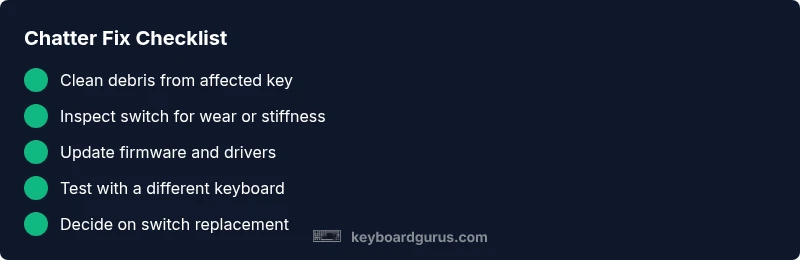
Follow this condensed flow when you don’t have time for a full diagnosis: 1) Confirm the issue persists with another keyboard (host check). 2) Clean and inspect the affected key area for debris. 3) Update firmware and drivers. 4) Test with a different OS user profile or language input. 5) If chatter remains, replace the switch or board. 6) If all else fails, seek professional service. This method prioritizes safety and efficiency and aligns with Keyboard Gurus recommended best practices.
Steps
Estimated time: 30-60 minutes
- 1
Power down and unplug
Shut down the computer, unplug the keyboard, and disconnect any wireless dongle if applicable. This prevents electrical shorts and accidental inputs while you inspect components.
Tip: Handle cables gently to avoid strain on connectors. - 2
Inspect keycap and surrounding area
Carefully remove the keycap over the affected key and inspect the switch for visible debris, damage, or wobble. If you see crumbs, remove them with a blast of air or a soft brush.
Tip: Use a non-metal keycap puller to avoid scratching the switch housing. - 3
Clean debris and check switch
Use compressed air to dislodge debris; wipe the switch housing with a small amount of isopropyl alcohol on a cotton swab. If the switch is hot-swappable, reseat it; if not, plan replacement.
Tip: Avoid liquid pooling around the switch; allow it to dry before testing. - 4
Re-seat or replace the switch
If hot-swappable, reinstall the switch firmly. For soldered boards, consider replacing the switch or the entire switch row if several keys chatter.
Tip: Keep spare switches and a switch-opener handy for quick swaps. - 5
Update firmware and debounce settings
Connect the keyboard to the PC and install the latest firmware. Check the debounce or repeat settings in the configuration software and adjust conservatively.
Tip: Back up your keymap before applying firmware changes. - 6
Test and verify results
Reattach the keyboard, run a typing test, and try various typing speeds and key types. If chatter persists, repeat the tests on a different host keyboard to confirm the scope.
Tip: Document each test to track progress and decisions.
Diagnosis: Key intermittently repeats or registers multiple characters for a single keystroke
Possible Causes
- highDust, debris, or hair under the affected key
- highSticky, worn, or damaged switch
- mediumDebounce settings too aggressive or firmware glitches
- lowDriver or software conflicts or macro utilities
Fixes
- easyClean around the keycap and switch with compressed air and isopropyl wipe
- mediumReplace or re-seat the affected switch; re-test after changing switch hardware
- easyUpdate firmware and drivers; adjust debounce settings if available
- easyTest with another keyboard to rule out host issues; check for conflicting software
Got Questions?
What is keyboard chatter?
Keyboard chatter is when a single keystroke registers multiple characters or ghost inputs. It can be caused by hardware debris, switch wear, or debounce/software issues. Identifying the root cause is the first step to a durable fix.
Keyboard chatter means a single press can register more than once. We'll walk through hardware and software checks to fix it.
Is keyboard chatter dangerous to my computer?
Chatter is typically an input issue and not hazardous to the computer. It mainly disrupts typing accuracy and workflow. If you notice other unexpected activity, rule out malware or high-resource background processes.
Usually not dangerous, just annoying. Check for malware if you see other odd behavior.
Can a software update fix keyboard chatter?
Yes, updating the keyboard’s firmware and your drivers can resolve debounce glitches. Some issues are fixed with configuration changes to debounce settings; always back up profiles first.
Sometimes a software update can fix the problem. Make sure to back up your settings first.
Should I replace the switches to fix chatter?
If cleaning and debounce adjustments don’t help on a mechanical keyboard, replacing the affected switch or the board segment is a common solution. Hot-swappable builds make this easier.
Switch replacement can fix it if cleaning and software tweaks fail.
When should I seek professional repair?
If chatter persists after cleaning, software updates, and basic troubleshooting, a professional repair can diagnose board-level faults, solder joints, or deep firmware issues. Check warranty terms before disassembly.
If it still happens after trying everything, see a professional.
How do I test if the host computer is at fault?
Test with another keyboard on the same host and test your keyboard on another host. If chatter moves with the keyboard, it’s likely keyboard-related; if it follows the host, look at drivers or OS settings.
Test with a different keyboard; if the issue stays, the host may be the cause.
Watch Video
What to Remember
- Identify root cause with a structured test plan
- Clean debris and check switches before replacing parts
- Update firmware/drivers and adjust debounce conservatively
- If unresolved, seek professional repair