Why Does Keyboard Pop Up on Screen? A Practical Troubleshooting Guide
This urgent troubleshooting guide helps you diagnose why the on-screen keyboard pops up, with a clear flow, quick fixes, and prevention tips from Keyboard Gurus to keep your device calm.


Why the on-screen keyboard pops up: most often a software setting or app triggering the keyboard. Quick fix: close the active app, disable any 'Show touch keyboard' option in system settings, and restart. If it persists, reset keyboard settings or check for accessibility features that auto-focus text fields. This resolves the majority of pop-up issues quickly.
Common triggers that force the on-screen keyboard
On most devices, the on-screen keyboard appears whenever a text field receives focus. When it pops up by surprise, the culprit is rarely a hardware fault. Instead, software settings, third‑party apps, or accessibility features often force the keyboard to appear. Common triggers include enabled 'Show touch keyboard' options, accessibility helpers like screen readers, and quick gestures that summon the keyboard. Another frequent cause is a lingering text input focus left by a previously closed app, so the OS assumes you want to type. Finally, some keyboards ship with smart auto‑focus behavior that opens the keyboard automatically as you navigate between fields or open a chat window. Understanding these triggers helps you apply targeted fixes rather than a global reset.
- Always note when and where the pop-up occurs. Is it after app launch, during a specific task, or randomly?
- Check if accessibility features or a helper keyboard is enabled. These are common accelerants for automatic pop-ups.
- Remember that software updates can change how keyboards are activated, so a recent update may be the culprit.
With this groundwork, you can begin a precise, efficient troubleshooting flow rather than a scattershot approach.
Deep dive: how to observe the behavior and collect clues
To diagnose effectively, observe the pattern of the pop-up. Record the exact time, app, and action that precedes the keyboard appearing. Take screenshots or notes of any settings you adjust, as this creates an audit trail and helps you reverse changes if needed. If the keyboard appears on boot or when opening a new app, consider whether the OS is reactivating input methods after a reset or crash. In some cases, a layout switch (e.g., from a physical keyboard to an on-screen one) can be mistaken for a pop-up issue. By compiling a concise symptom log, you set up a deterministic path from symptom to solution and can distinguish between device-wide issues and app-specific quirks.
- Create a short log: time, app, action, outcome.
- Compare behavior across different apps to separate OS-level issues from app bugs.
- If one app consistently triggers the pop-up, check its permissions and keyboard-related settings or contact the developer.
Inspect system settings and accessibility toggles
Many devices offer a centralized place where you can control the on-screen keyboard and related accessibility options. Start by locating the input or keyboard section in the system settings and look for options like 'Show touch keyboard', 'Auto‑focus text fields', or any accessibility feature that brings up a keyboard for typing assistance. Disable or toggle these settings one at a time, then test. For devices with multiple input methods, ensure the active keyboard matches your preference and that the system isn’t silently switching keyboards when you switch apps. If you rely on a feature like predictive text or dictation, temporarily turning these off can help determine if they’re contributing to the pop-up.
- Disable 'Show touch keyboard' if found.
- Turn off automatic focus or text-field preselection features.
- Check for multiple keyboards and set your default.
After adjusting settings, perform a quick test by launching a typical app and attempting a simple text entry.
App-level behavior: how apps can trigger the keyboard
Apps can cause the on-screen keyboard to appear for several reasons. Some apps request keyboard focus on startup to improve usability, while others may inadvertently hold a text field as read-only but still request focus. If you notice the issue only within one app, the problem is likely app-specific. Check the app’s own settings for any keyboard options, update the app to the latest version, and clear the app cache if available. Buggy apps can also mis-handle lifecycle events, causing the keyboard to reappear on every screen transition. In such cases, report the bug to the developer and monitor whether updates fix the behavior.
- Test across multiple apps to confirm scope.
- Update or reinstall the problematic app.
- Consider clearing cache or data for the app (note: this may reset preferences).
If the symptom is isolated to a small subset of apps, focus your remediation on those apps first.
Diagnostic flow in practice: step-by-step decisions
This section maps symptom → likely cause → fix, so you can work through the problem efficiently. Start with quick, non-destructive steps (like checking settings) before moving to deeper actions (like resets). If a step doesn’t resolve the issue, proceed to the next recommended action. Keep a log of what you tried and the results to avoid repeating steps. When the problem persists after multiple attempts, you may be dealing with a deeper OS bug or a hardware issue that requires professional help.
- Step through settings first, then app behavior, then OS updates.
- Keep a calm test window after each change to observe results.
- If nothing helps, escalate to support channels.
Pro tips to prevent future pop-ups
- Regularly review keyboard and accessibility settings after major OS updates.
- Limit third-party keyboards to trusted sources and disable auto-switching.
- If you frequently switch devices or apps, maintain a short troubleshooting checklist for quick resets.
By implementing preventative steps, you reduce the chance of recurring pop-ups and preserve a smoother typing experience.
When to seek professional help and final thoughts
If the on-screen keyboard pops up despite all standard remedies and you can reproduce the issue across multiple apps and reboots, a deeper OS issue or rare hardware fault may be at play. In such cases, consult official support or a trusted technician. Keyboard Gurus recommends documenting your symptom log and update history before seeking help, so technicians can reproduce the issue accurately. The goal is to restore normal keyboard behavior with minimal disruption to your workflow.
Steps
Estimated time: 20-40 minutes
- 1
Identify the symptom and record context
Note when the keyboard appears, which app is active, and what action preceded the pop-up. This creates a baseline for testing after changes.
Tip: Use a simple log template for consistency. - 2
Close active apps and test
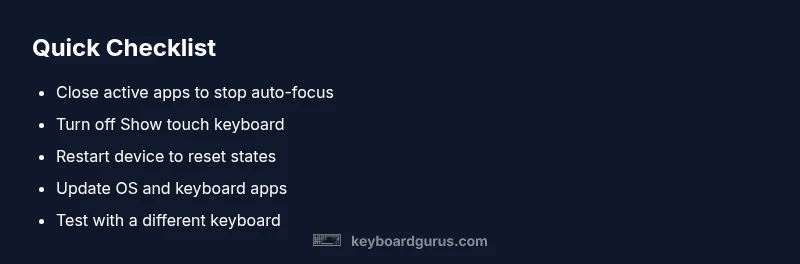
Fully close the app that was in use and any background processes, then open a new app and try typing to see if the pop-up recurs.
Tip: If the keyboard closes, the issue is app-related. - 3
Disable on-screen keyboard and accessibility features
In system settings, locate keyboard or accessibility options and turn off Show touch keyboard or auto‑focus features. Test again.
Tip: Make one change at a time to identify the exact trigger. - 4
Restart the device
Power down fully and restart. This clears transient states that can cause keyboards to pop up erroneously.
Tip: Give it a full minute for the OS to initialize. - 5
Update software and reboot
Install the latest OS update and any keyboard app updates. Reboot to apply changes.
Tip: Updates often fix lifecycle bugs that trigger keyboards unexpectedly. - 6
Test with a different keyboard input method
Switch to a different keyboard layout or input method temporarily to determine if the issue relates to a specific keyboard.
Tip: If the new keyboard works normally, the old one may be misconfigured. - 7
Reset keyboard settings if needed
If none of the above helps, reset keyboard preferences or perform a broader device reset as a last resort.
Tip: Back up important data before reset to avoid data loss.
Diagnosis: On-screen keyboard pops up without explicit text input focus
Possible Causes
- highShow touch keyboard or accessibility keyboard setting enabled
- mediumApp repeatedly requesting text input due to a bug or overlay
- lowOS misconfiguration or input method bug
Fixes
- easyToggle off Show touch keyboard / accessibility keyboard first, then retest
- easyRestart device to clear transient focus states
- mediumUpdate OS and keyboard-related apps to patch known issues
- easyReset keyboard settings or, as a last resort, reset device settings
Got Questions?
What causes the on-screen keyboard to pop up unexpectedly?
Unexpected pop-ups are usually caused by settings like Show touch keyboard or accessibility options, or by an app forcing focus. OS updates can also alter keyboard behavior. Isolate whether the issue is OS-wide or app-specific with careful testing.
Most often it’s a setting or app forcing keyboard focus. Check for accessibility options and test across apps.
How do I disable the on-screen keyboard in Android or iOS?
Navigate to the system keyboard settings and turn off automatic keyboard popping or auto-focus features. If an accessibility service is responsible, disable it and test. Reboot after changes to ensure the new configuration sticks.
Go to keyboard settings, disable auto-show, and reboot to apply.
Will updating my OS fix the issue?
OS updates can fix bugs that cause keyboards to appear unexpectedly. Ensure all keyboard-related apps are updated as well. If the problem started after an update, you may need to revert or report the bug.
A software update can fix the bug, but verify with the latest app updates too.
Could an app be triggering the keyboard?
Yes. Some apps request keyboard focus on launch or during navigation. Test by disabling the app or using a different one. If the issue disappears, report the problem to the developer.
An app bug could be the culprit; test with other apps.
Is there a security risk when fixing keyboard pop-ups?
There’s minimal direct security risk in adjusting settings, but avoid installing untrusted keyboards or disabling security features to fix the issue. Always maintain trusted sources and backups.
No major security risk from tweaks, but avoid risky keyboards.
When should I seek professional help?
If the pop-up persists across all apps, after updates, and a device restart fails, professional help is warranted. Provide a symptom log and a note of changes you’ve made to speed up diagnosis.
If it won’t go away after all steps, get professional help.
Watch Video
What to Remember
- Identify triggers by pattern and app context.
- Tackle settings first before deeper resets.
- Update software to resolve known keyboard bugs.
- Document steps to prevent repeats.